How to Install WordPress
How to Install WordPress: The Comprehensive Guide to Hosting Setup Steps
Your practical, step-by-step guide to installing the WordPress system on your hosting space and launching your website professionally and quickly.
Table of Contents
- 1. Introduction: What You Need Before Starting the Installation Process
- 2. Practical Steps to Install WordPress via cPanel Control Panel
- 3. Manual Installation vs. One-Click Quick Installation
- 4. Comparison Table: Different Installation Methods and Features
- 5. Important Steps Immediately After Installation Completion
- 6. Frequently Asked Questions (FAQ)
1. Introduction: What You Need Before Starting the Installation Process
Before embarking on installing WordPress, you need two fundamental elements: a domain name representing your digital identity, and a web hosting package supporting PHP and MySQL databases.
2. Practical Steps to Install WordPress via cPanel Control Panel
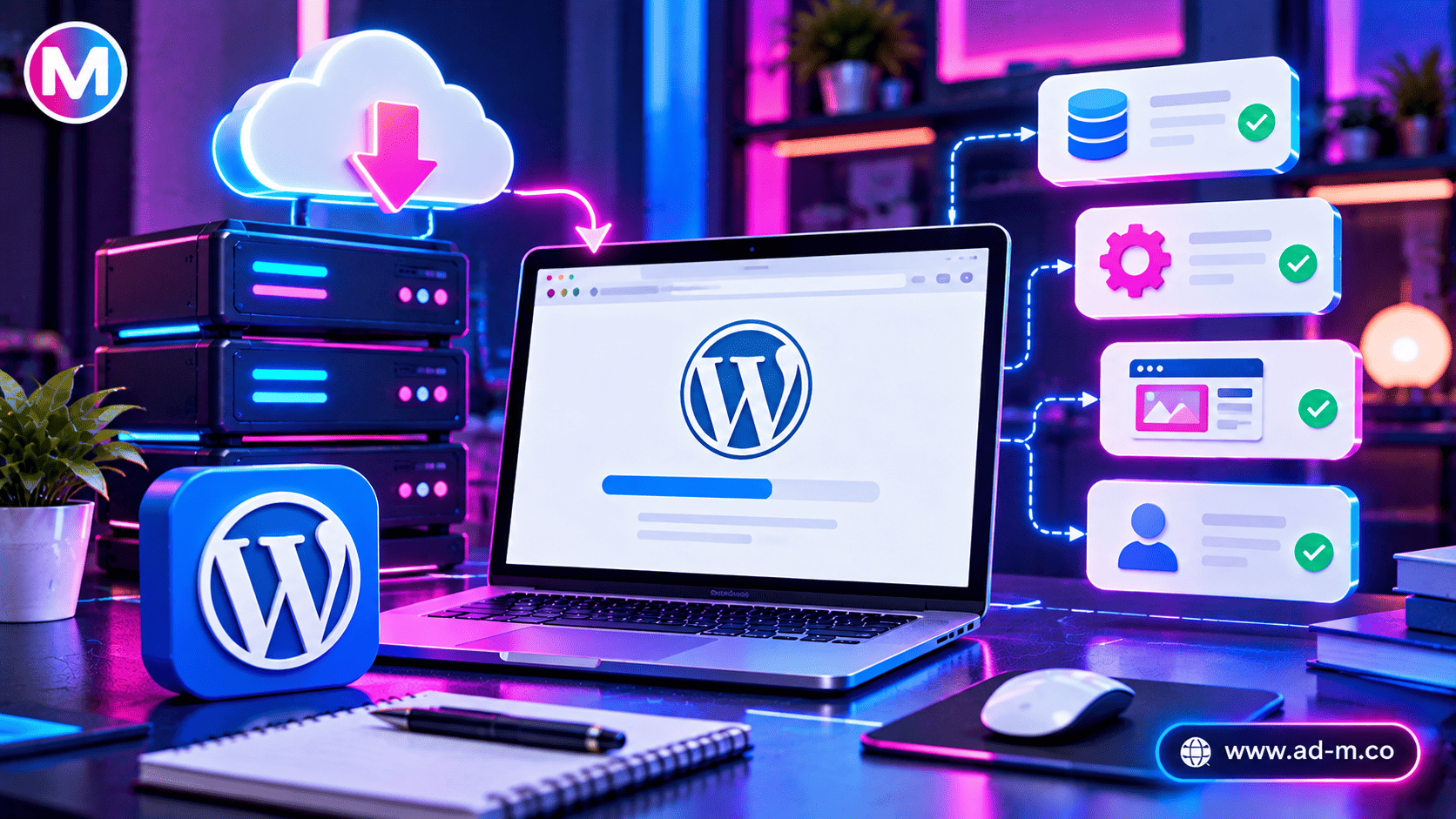
The easiest and most common way to install WordPress is by using auto-installer tools available on hosting, such as Softaculous:
- Logging In: Access your hosting control panel (e.g., cPanel).
- Selecting Installer: Look for the WordPress icon or the quick installation tool (Softaculous Apps Installer).
- Entering Site Details: Specify the domain name, site title, WordPress dashboard username and password, then click “Install”.
3. Manual Installation vs. One-Click Quick Installation
While beginners prefer quick auto-installation for its ease and speed, developers sometimes resort to manual installation (uploading WordPress files via FTP and manually creating a MySQL database) to grant the site extra layers of custom security and precise structural control.
4. Comparison Table: Different Installation Methods and Features
| Comparison Factor | Auto-Installation (One-Click) | Manual Installation (via FTP) |
|---|---|---|
| Speed & Ease of Use | Very fast (Takes a few minutes for beginners) | Requires technical expertise and more time |
| Control & Custom Security | Standard and good default configurations | Full flexibility in database paths and security configuration |
| Target Audience | Business owners and beginners | Professional programmers and web developers |
5. Important Steps Immediately After Installation Completion
Once WordPress installation is finalized, it is recommended to take essential steps including: updating Permalinks settings, installing an SSL security certificate, configuring security and backup plugins, and removing unnecessary default plugins or themes.
6. Frequently Asked Questions (FAQ)
Does installing WordPress require paying platform fees?
No, the WordPress system itself is 100% free and open-source; all you pay for is the Domain and Hosting costs.
How does Maria Deprma help set up and install my website?
We completely handle the hosting setup, WordPress installation, security and speed configuration, and engineer your site to launch at peak efficiency.
Want to Install and Set Up Your WordPress Website Professionally and Effortlessly?
Get in touch with Maria Deprma’s expert team today to establish and launch your website with top technical standards.


Leave a Reply