
Managing Professional Email on iPhone
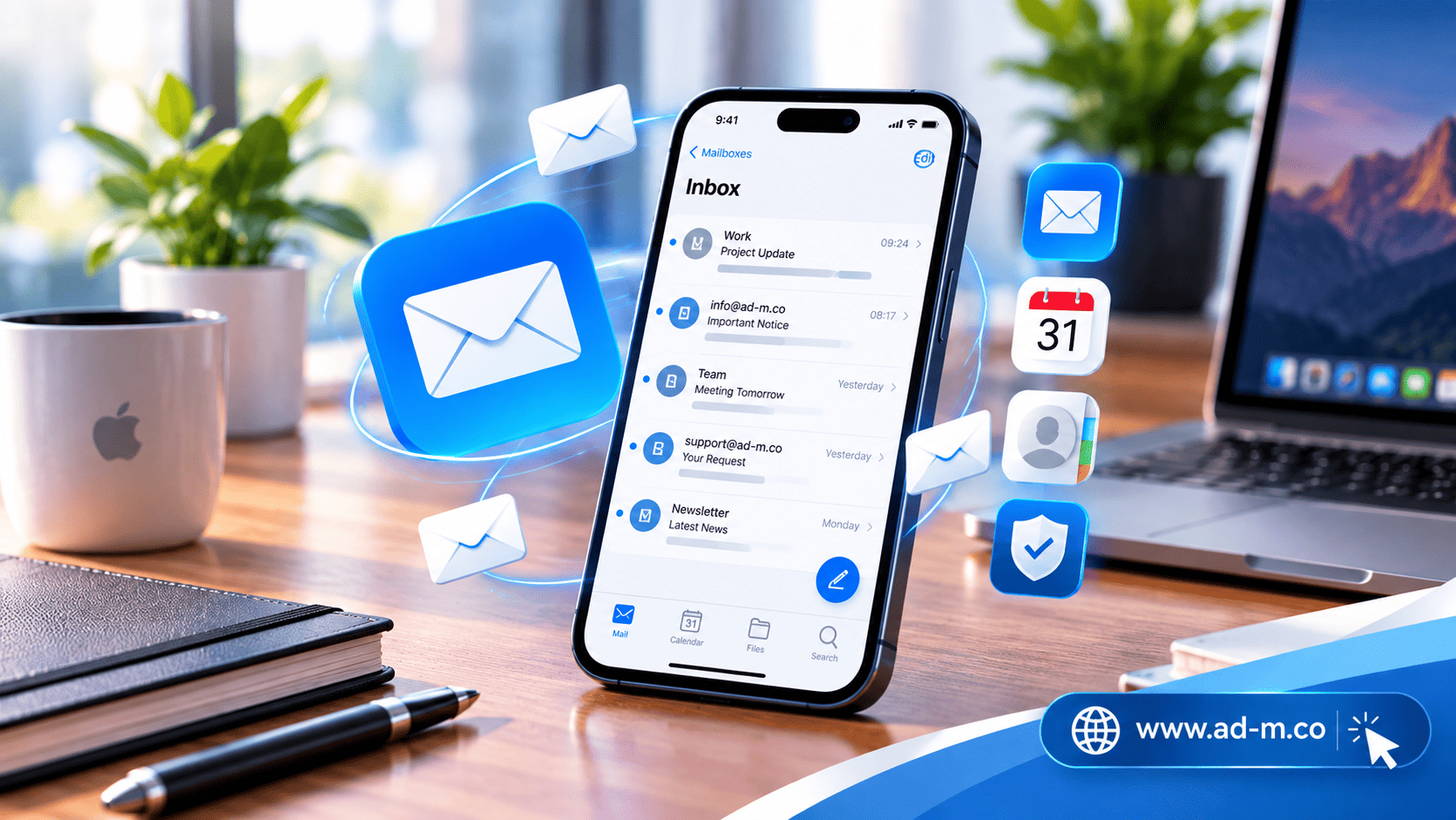
Managing Professional Email on iPhone: Comprehensive Setup and Linking Guide
Learn the detailed steps to link and set up your professional business email (tied to your company domain) on iPhone to ensure accurate tracking of clients and business on the go.
Table of Contents
1. Introduction: Why Managing Email from iPhone is Essential for Entrepreneurs
After reviewing email management options across Apple devices generally, we dedicate this guide specifically to **iPhones**, given how heavily many project owners and company managers rely on them daily. Instant tracking of messages via your phone allows you to respond rapidly to requests and commercial opportunities wherever you are.
2. Steps to Link Professional Email via iOS Settings
To begin linking your official email (e.g., info@yourcompany.com) to the default iPhone Mail app, follow these steps:
- Go to **Settings**, choose **Mail**, then select **Accounts**.
- Tap **Add Account**, then choose **Other**.
- Select **Add Mail Account** and enter your name, email address, password, and account description.
- Accurately enter the incoming (IMAP) and outgoing (SMTP) mail server details based on your hosting provider’s data.
3. Advanced Options: Using Outlook or Gmail Apps on iPhone
If you prefer alternative interfaces supporting additional organizational features, you can download the **Microsoft Outlook** or **Gmail** app from the App Store and seamlessly link your professional email inside them using standard communication protocols.
4. Security Tips and Alert Settings to Ensure Efficient Follow-up
To keep your company data secure on your phone, it is recommended to enable biometric screen locks (Face ID) and assign distinct notification tones for professional mail to separate it from personal messages and handle it with top priority.
5. Frequently Asked Questions (FAQ)
Does linking professional email drain the iPhone battery significantly?
You can manage this by configuring data fetch settings (Fetch New Data) to manual or specific time intervals rather than continuous active Push syncing to save battery life.
How does the Maria Deprma team assist in configuring iPhone settings?
We provide technical consultations and accurate hosting server data to ensure your iPhone setup completes successfully on the very first try.
Facing Trouble Linking Your Professional Email on Your iPhone?
Get in touch with Maria Deprma’s expert team today to receive technical assistance and support in setting up your official email to operate at peak efficiency.




Leave a Reply